Phidget RFID
Pc Lap Counter works with Phidget RFID to detect pit stops:
Warning: Pc Lap Counter only supports Phidget RFID readers that work with the Phidget21 libraries (the Phidget22 libraries are not supported by Pc Lap Counter). Before buying a Phidget RFID reader, ask your reseller to confirm that it works with the Phidget21 libraries.
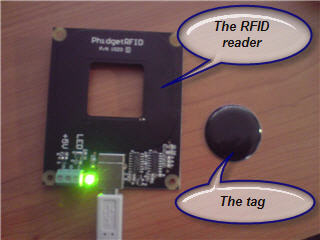
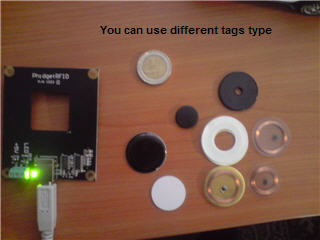
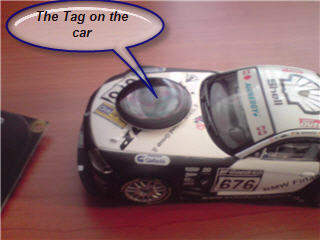
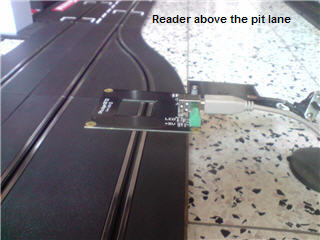
Since version 5.03, you can connect the Phidget RFID 1023 reader to a USB port to detect pit stops. The idea is to put a small tag with a unique ID on each car:
when the car stays under the reader for 2 seconds, Pc Lap Counter recognizes the tag ID and generates a pit stop for the corresponding car/driver; when the car leaves the reader, Pc Lap Counter generates a Pit Out.
With a second reader, Pc Lap Counter can detect Pit In and Pit Out. With two readers, the car does not have to stay under the reader for 2 seconds (but must run slowly): when the car reaches the first reader, Pc Lap Counter generates a Pit In, and when it reaches the second reader, a Pit Out.
The Phidget RFID reader can read tags at a distance of up to 7 cm (depending on the size of the tag) at 125 kHz, which is enough to detect pit stops because cars are supposed to run very slowly in the pit lane.
Note: do not try to use Phidget RFID to detect laps... it is not fast enough to detect a car crossing the finish line!
Here is a short video showing a Phidget RFID reader on my old Carrera Digital test track. As you know, the old Carrera Digital ref. 30342 does not send any pit information to the computer, but with a Phidget RFID reader it is now possible, and you can therefore use the fuel management and Stop & Go features of Pc Lap Counter.
How to configure Pc Lap Counter to detect pit stops with Phidget RFID:
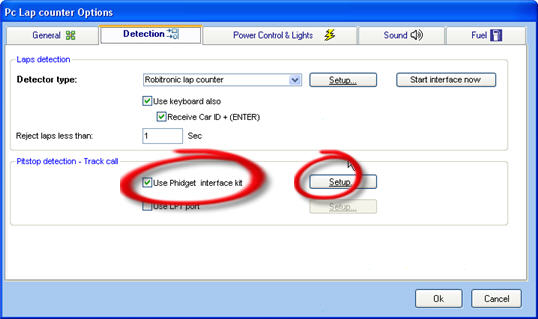
- In the options screen, specify that you will use a Phidget interface to detect pit stops and click the setup button.
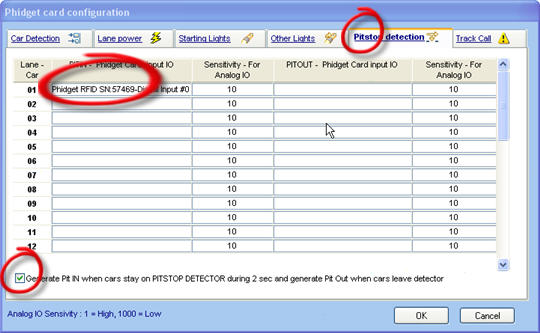
- Select the “Pitstop detection” tab. In the “PIT IN” column, specify “Phidget RFID” on car #1 (there is no need to specify an IO for the other cars). If you have a second reader, also specify “Phidget RFID” in the “PIT OUT” column.
- If you have only one Phidget reader, tick the option “Generate Pit IN when cars stay on...”.
How to set up a race with an RFID system:
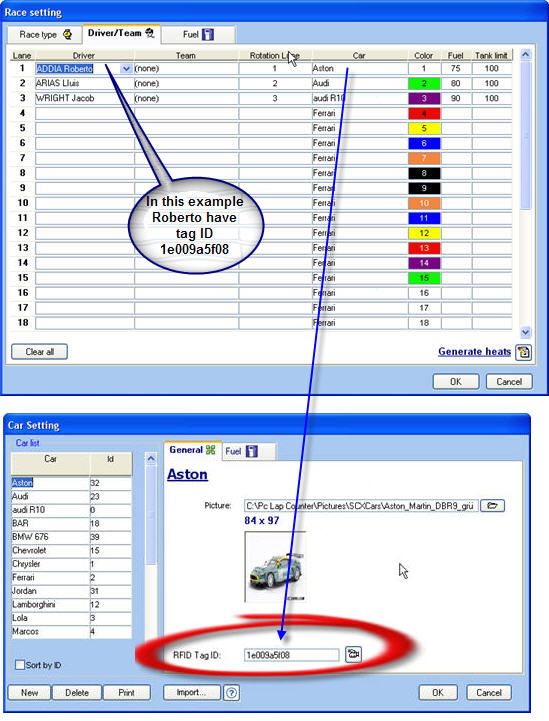
- Each tag must be known to Pc Lap Counter. In Pc Lap Counter, the tag is linked to the car, so it is important to update the car database and specify the tag ID for each car:
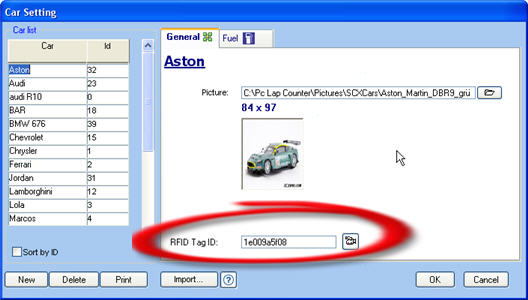
 This button opens the tag reader window.
- When you set up a race, the most important thing is to select the right car for each driver/team, because the car provides the link between the tag ID and the driver.
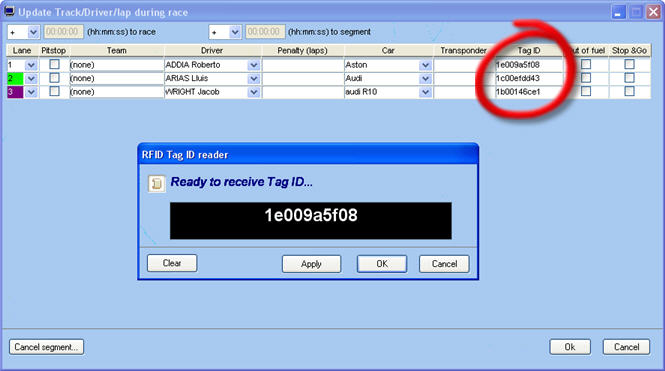
Tip: during the race you can change the tag ID of each car/driver: on the main screen of Pc Lap Counter, click the “Update...” button and update the tag/transponder ID (double-clicking it opens the tag ID reader window).