SmartSensor
Pc Lap Counter works with the SmartSensor to detect pit stops:
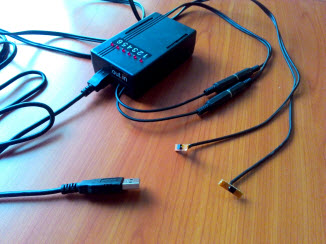
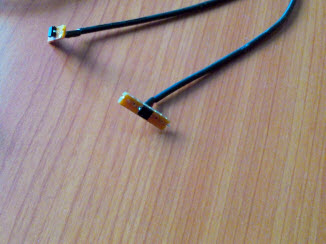
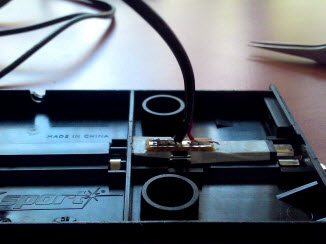
Since version 5.27c, Pc Lap Counter works with the SmartSensor system to detect pit IN/OUT (only on a Scalextric Digital track with a C7030 or C7042 powerbase).
With a SmartSensor on your track, Pc Lap Counter knows when your cars are in the pit lane. The sensors are very small and flexible, so they are easy to install on any track. For more information and to order, visit the SmartSensor website.
SmartSensor PP mode uses the same protocol as the Pit-Pro, so for Pc Lap Counter there is no difference between a Pit-Pro and SmartSensor PP mode.
Since version 5.37, Pc Lap Counter is also compatible with SmartSensor SS mode (only with Scalextric Digital C7042).
What Pc Lap Counter can do with the SmartSensor:
- Detect pit IN / OUT.
- Give a Stop & Go penalty when a driver goes too fast in the pit lane area.
- Reduce the cars’ max speed in the pit lane (only with the Scalextric Digital C7042 powerbase).
- In addition, with SmartSensor SS mode, Pc Lap Counter can:
- Lights up starting lights connected to the RJ45 connector of the SmartSensor box, more information on the SmartSensor website:
- Arduino Pin 8 = light Red 5
- Arduino Pin 7 = light Red 4
- Arduino Pin 6 = light Red 3
- Arduino Pin 5 = light Red 2
- Arduino Pin 4 = light Red 1
- Arduino Pin 9 = light Go
- Arduino Pin 10 = light Yellow flag
- Reverse the Pit direction.
- Lights up starting lights connected to the RJ45 connector of the SmartSensor box, more information on the SmartSensor website:
Here is a video showing the SmartSensor in PP mode used with Pc Lap Counter:
How to configure Pc Lap Counter for SmartSensor PP mode (with Scalextric C7030 or C7042):
- SmartSensor PP mode uses the same protocol as the Pit-Pro, so setting up Pc Lap Counter for the SmartSensor is exactly the same as setting it up for the Pit-Pro.
- First you need to set up Pc Lap Counter to work with Scalextric Digital.
- In the SSD interface of Pc Lap Counter, tick the Pit-Pro option and specify the correct COM port (the SmartSensor includes a USB/serial adapter cable).
- You can set the speed limit in the pit lane by specifying the maximum throttle value allowed in the pit lane area.
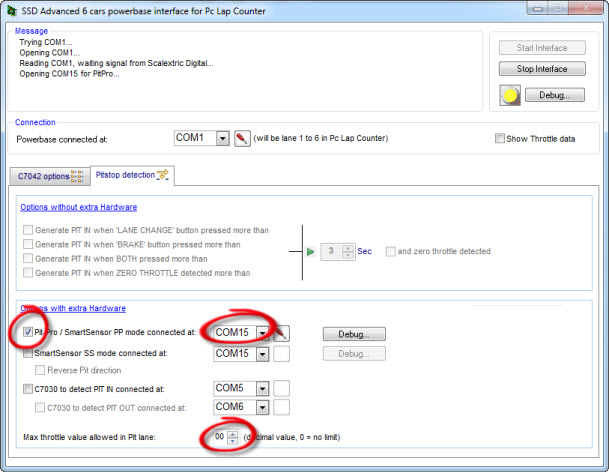
How to configure Pc Lap Counter for SmartSensor SS mode (with Scalextric C7042 only):
- First you need to set up Pc Lap Counter to work with Scalextric Digital.
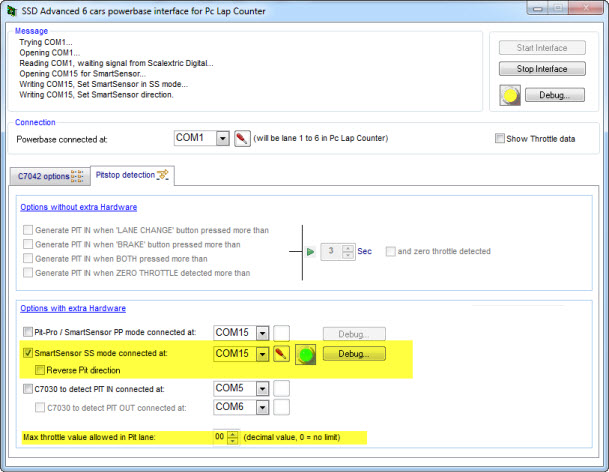
- In the SSD interface of Pc Lap Counter, tick the SmartSensor SS mode option and specify the correct COM port (the SmartSensor includes a USB/serial adapter cable).
- If necessary, you can reverse the pit direction by ticking the option “Reverse Pit Direction”.
- You can set the speed limit in the pit lane by specifying the maximum throttle value allowed in the pit lane area.