
Ninco Digital 1.08
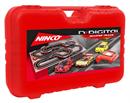
Pc Lap Counter works with the Ninco Digital powerbase 1.08:
Since version 5.07, Pc Lap Counter includes an interface to read data from the Ninco Digital powerbase 1.08.
The powerbase 1.08 is not really a new powerbase: it is just a powerbase with a firmware update that finally sends lap information through the PS2 connector (previous powerbases only sent car positions).
How to know whether your powerbase is a 1.08? It is not easy:
Since January 2010, new Ninco Digital kits and tracks are delivered with the 1.08 powerbase, but shops may have old stock, and since version 1.05 the powerbase no longer displays its version. The only way to know whether your powerbase is a 1.08 is to run a test with the ND Tester tool, which tests the compatibility of your powerbase. Of course, to run the test you first need the PS2/USB cable (see below).
To connect your Ninco Digital powerbase 1.08 to the computer, you need a special cable. You can buy an assembled PS2/USB cable by e-mailing Rich G at richg@girling.net, or from Slot Car-Union.
For your information, cables that work with DataRace2 or MAARDS also work with Pc Lap Counter 5.07.
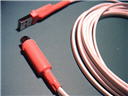
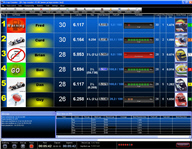

Basically, with the powerbase 1.08 you do not need to modify it to use Pc Lap Counter, as it sends laps, lap times and fuel level information. However, it does not currently send any pit stop information. To send pit stop information to Pc Lap Counter, connect a Ninco Digital Multi Lane Sensor (ref. NI40206) to the computer by following the Multi Lane connection diagram.
On a 4-lane track, you can also connect a Ninco Digital Multi Lane Sensor to the computer to send S/F information for lanes 3 and 4.
How to configure Pc Lap Counter for the Ninco Digital powerbase 1.08:
- In the options window, choose “Ninco Digital Powerbase 108” as the detector.
- Click the Setup button and change the serial port if necessary.
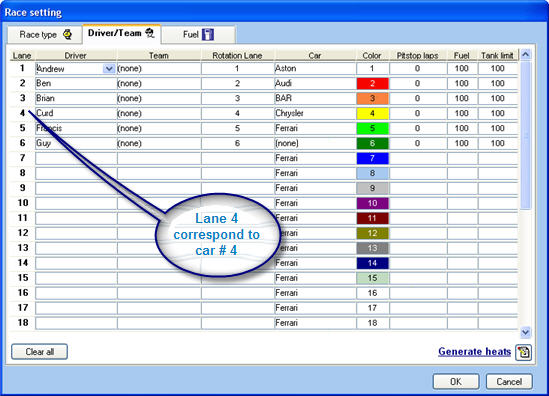
- Then you only need to assign drivers to the right lanes when you set up a race (lane 1 corresponds to car 1, lane 2 to car 2, etc.).
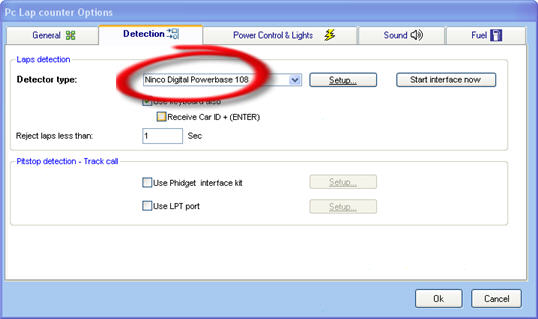
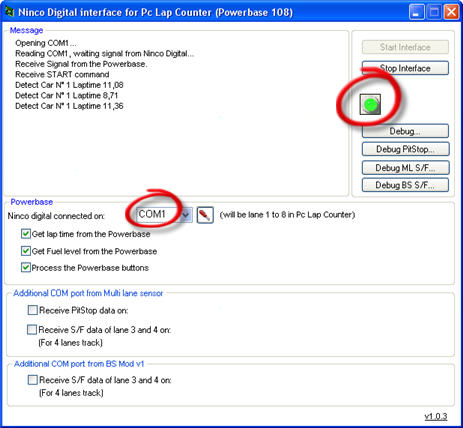
When you tick the option “Process the powerbase buttons”, Pc Lap Counter processes the powerbase buttons like this:
- START on the powerbase starts the race in PCLC with the countdown. If you do not want the countdown, set
the race option “Start Countdown” to 0. - PAUSE on the powerbase pauses the race in PCLC.
- RESUME on the powerbase resumes the race in PCLC.
Additional COM port:

Here you can specify the COM port to which your Ninco Digital Multi Lane Sensor is connected to detect pit stops (or your BS interface v1.1 pit port), and the COM port to which your Multi Lane Sensor is connected to detect cars on lanes 3 and 4 of a 4-lane track.
Fuel management with Ninco Digital: you have two possibilities:
- In the race setting, set “Fuel management” to OFF:
If you set up the interface to get the fuel level from the powerbase, Pc Lap Counter displays the fuel tank information coming from the powerbase and alerts you when the tank reaches the low level; when the tank is empty, Pc Lap Counter also alerts you (see your Ninco Digital manual for more information about fuel management). - In the race setting, set “Fuel management” to ON:
In that case, Pc Lap Counter ignores the fuel tank information coming from the powerbase and uses its own analog fuel management (based on lap time).