
Phidget RFID to change driver
Pc Lap Counter works with Phidget RFID to change driver and car:
Warning: Pc Lap Counter only supports Phidget interface kits that work with the Phidget21 libraries (the Phidget22 libraries are not supported by Pc Lap Counter). Before buying a Phidget interface, ask your reseller to confirm that it works with the Phidget21 libraries.
You can connect a Phidget RFID 1023 reader to a USB port to change drivers during a race without any keyboard or mouse input. The idea is to give each driver a card with a unique tag ID linked to the driver database. When a driver wants to enter the race, he simply places his card near the Phidget RFID reader, and Pc Lap Counter automatically recognizes the driver and updates the race data exactly as you would do manually with “Update”, but without any manual input, which eliminates potential human errors.
Here is a short video showing a Phidget RFID reader used to change drivers during a team race.
What Pc Lap Counter can do with a Phidget RFID reader (since Pc Lap Counter version 5.22):
- Change driver and car during the race (exactly as you do manually with “Update”, but without any manual input).
- Assign a card to a driver.
- Assign a card to a car.
- Assign a card to a lane.
- Assign a Phidget RFID reader to a specific lane (driver station).
- Manage up to 8 Phidget RFID readers.
- When a Phidget RFID reader receives a card, Pc Lap Counter lights up the reader’s green LED, plays a special sound and displays a popup window with the status of the request.
- When Pc Lap Counter successfully processes a driver/car change, it activates the 2 digital outputs of the Phidget RFID reader and plays a special sound.
- Play a special sound when the tag ID is unknown to Pc Lap Counter.
- Assign a card to cancel a pending request.
How to use Phidget RFID with Pc Lap Counter:
First, in the options screen, tick the option “change driver by using Phidget RFID”. Then, in the driver settings window, associate a card with each driver and, optionally, with each car (to be able to change the car with the Phidget RFID reader).
You can also associate a card to cancel a pending request.
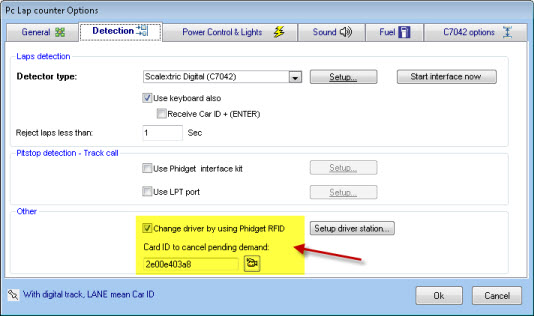
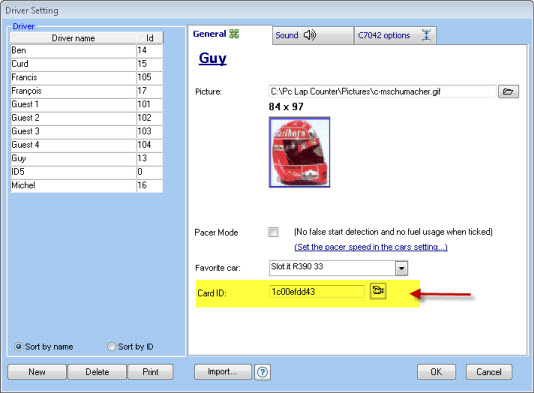
You then have 4 possibilities:
- One or more Phidget RFID readers and NO card per lane (as before version 5.22):
This configuration works only with team races, and you can only change the driver (not the car).
When a driver wants to enter the race, he presents his card to a Phidget RFID reader, and Pc Lap Counter automatically recognizes the driver’s team and therefore the lane.
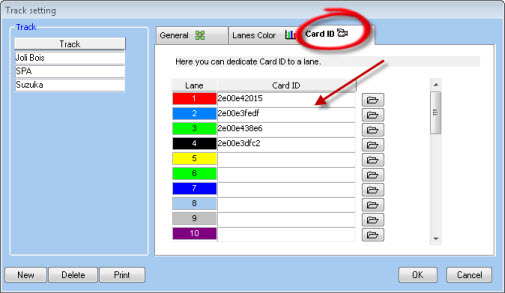
- One or more Phidget RFID readers and a card per lane
In the track settings window, associate a card with each lane.
When a driver wants to enter the race, he presents his card (and optionally his car card) to a Phidget RFID reader, and also presents the lane card corresponding to the lane he wants to join.
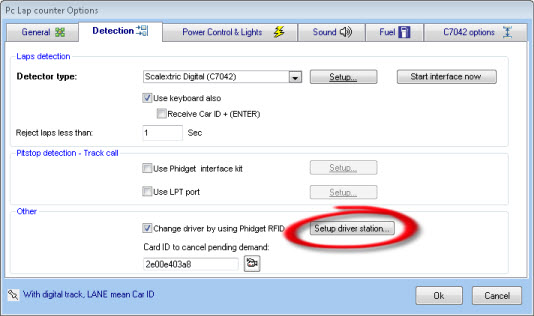
- One Phidget RFID reader per lane/driver station:
In the Phidget setup window, “driver station” tab, associate a Phidget RFID reader with each lane.
When a driver wants to enter the race, he presents his card (and optionally his car card) to the Phidget RFID reader corresponding to the lane he wants to join.
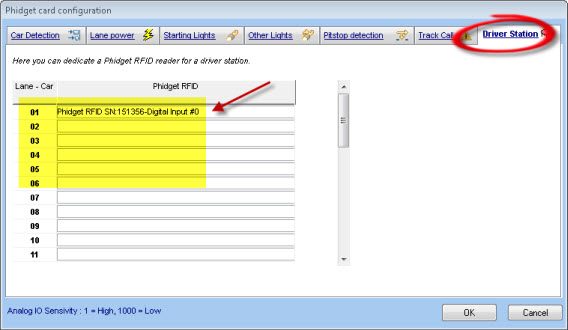
- One Phidget RFID reader per lane/driver station + a card per lane:
You can associate a Phidget RFID reader with each lane and also set up a card per lane. When a driver presents a lane card to a Phidget RFID reader, Pc Lap Counter temporarily overrides the reader’s lane with the lane associated with the lane card.
To know:
- To cancel a pending request, close the status window or present the “cancel” card to the Phidget RFID reader.
- During a team race, the lane information is only needed to change the car.
- The order of the cards does not matter, because Pc Lap Counter processes the request only once it has all the necessary information. Here are the possible orders (DC = Driver Card, CC = Car Card, LC = Lane Card):
With a Phidget RFID reader (possibility #1):
DC -> puts the driver on the lane associated with his team
With a Phidget RFID reader and a card per lane (possibility #2):
DC - CC - LC -> puts the driver and the car on the lane associated with the lane card
CC - DC - LC -> same
DC - LC -> puts the driver on the lane associated with the lane card
LC - DC -> same
CC - LC -> puts the car on the lane associated with the lane card
LC - CC -> same
With a Phidget RFID reader per lane/driver station (possibility #3):
DC -> puts the driver on the lane associated with the Phidget RFID reader
CC -> puts the car on the lane associated with the Phidget RFID reader
With a Phidget RFID reader per lane/driver station + a card per lane (possibility #4):
DC -> puts the driver on the lane associated with the Phidget RFID reader
CC -> puts the car on the lane associated with the Phidget RFID reader
LC - DC -> puts the driver on the lane associated with the lane card
LC - CC -> puts the car on the lane associated with the lane card
- The status window shows the information still missing to complete the process:
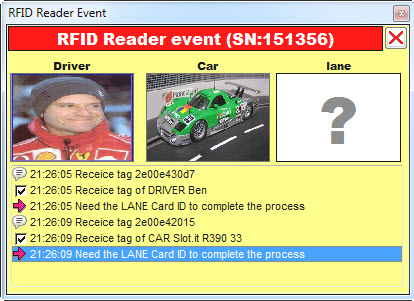
There is one status window per Phidget RFID reader.
Warning on Phidget RFID:
- If two tags are in the reading field at the same time, the reader reads neither of them.
- If two readers are placed too close together, neither of them works.