
Scalextric Digital C7042
Pc Lap Counter works with the new Scalextric Digital powerbase C7042:
Since version 5.08, Pc Lap Counter is compatible with the new Advanced 6 Car Powerbase from Scalextric (C7042).
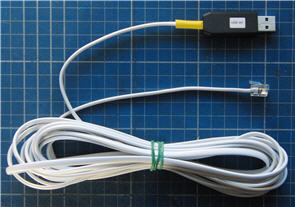
To connect your C7042 powerbase to your computer, you need a special USB cable. You can buy the cable by sending an e-mail to Richard Girling at richard@girling.net (the cable for the C7030 does not work with the new C7042 powerbase), or from Professor Motor or Slot Car-Union.

What Pc Lap Counter can do with the new C7042 powerbase:
- Reduce the cars’ performance according to the fuel tank level.
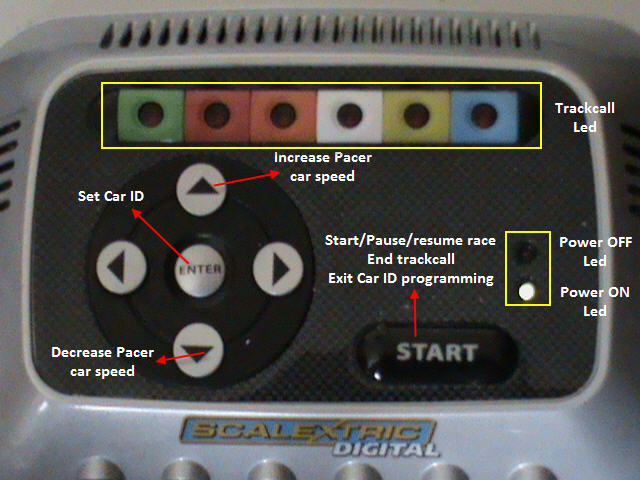
- Control the track power when starting, pausing, resuming or stopping a race, and light up the power on/off LED of the powerbase.
- Start, pause or resume the race using the “START” button of the powerbase.
- Program the cars directly from Pc Lap Counter.
- Specify driver preferences such as throttle map, dynamic brake, maximum power, track call enabled/disabled and brake strength.
- Specify each driver’s maximum power; for kids, for example, you can set the top speed to 75%.
- Manage the pacer driver / ghost car. In addition, with the C7042 you can change the pacer speed during the race using the “ARROW UP” / “ARROW DOWN” buttons of the powerbase.
- Manage track calls (depending on the track call method, the driver must press the BRAKE button + the LC button with zero throttle, or just the LC button + the BRAKE button).
- When a driver requests a track call, Pc Lap Counter lights up the corresponding car ID LED of the powerbase.
- When a driver does not press the throttle for a specified delay, Pc Lap Counter can generate a track call automatically.
- Detect a false start and give a stop & go penalty to the offending driver.
- When a driver fails to serve his stop & go penalty, Pc Lap Counter stops his car.
- Start/stop pace car mode (yellow flag).
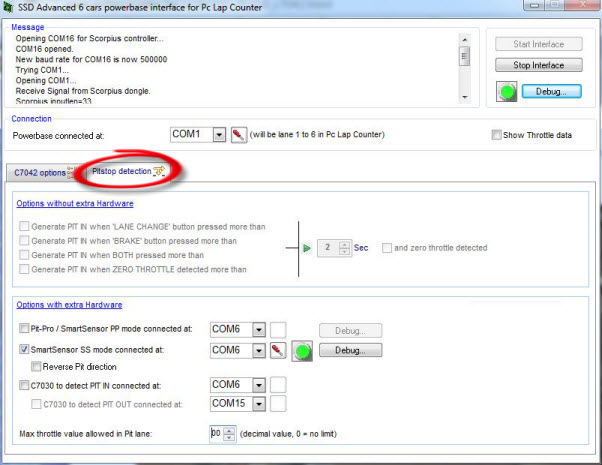
- Detect pit stops using the Pit-Pro, the SmartSensor or an old C7030; you can also simulate a pit stop in several ways, such as pressing the LC button for 2 seconds.
- Limit the cars’ max speed in the pit lane.
- Use an old C7030 powerbase to detect pit stops (one C7030 for Pit-IN and, optionally, another for Pit-OUT). Of course, you must modify your old C7030 powerbase, otherwise you will damage your powerbases!
- Use an old C7030 powerbase to detect other S/F lines, such as an S/F line in the pit lane or on a 4-lane digital track (of course, you must modify your old C7030, otherwise you will damage your powerbases!).
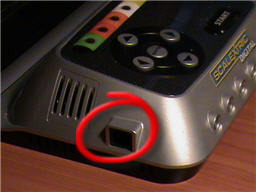
Another solution is to add sensors to your C7042. - Since firmware v1.04 of the C7042, you can switch to analog mode when the tower is not connected: on the C7042, hold the left + up + right buttons and press Start 5 times.
- Since version 5.31, you can use the Scorpius Wireless controller.
- Manual or automatic refuelling, and the same for stop & go (since version 5.41).
How to configure Pc Lap Counter for the Scalextric Digital C7042:
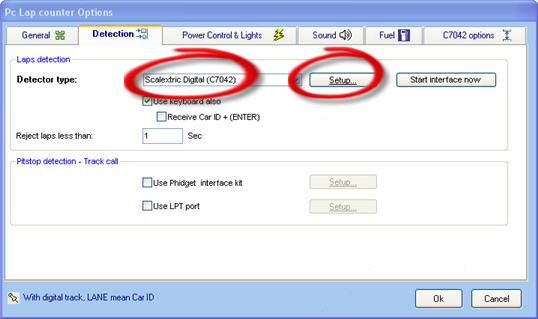
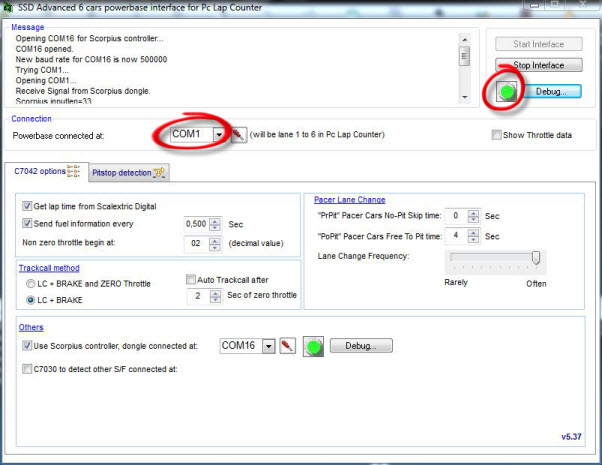
- In the options window, select the detector “Scalextric Digital C7042” and click the “Setup...” button.
- Change the serial port if necessary...
- Select the pit stop detection method.
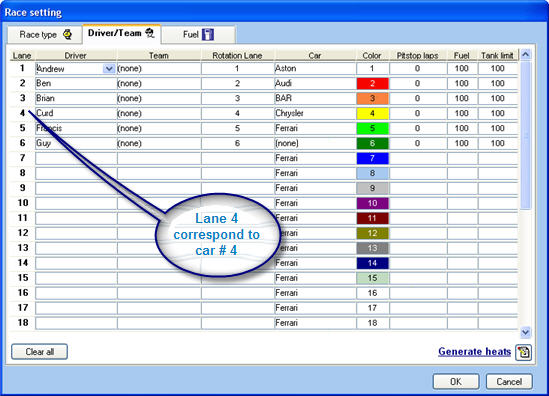
- Then you only need to assign drivers to the right lanes when you set up a race (lane 1 corresponds to car 1, lane 2 to car 2, etc.).
Warning: to use an old C7030 powerbase, you must modify it. More information on the modification here.
Warning: to use an old C7030 powerbase, you must modify it. More information on the modification here.
Advanced options for the Scalextric Digital C7042:
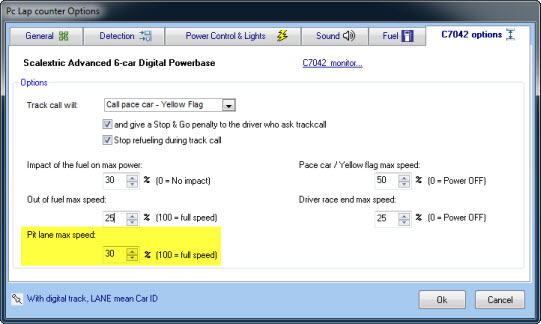
- Track call will:
When a driver requests a “track call”, you can specify whether all cars stop or whether the pace car / yellow flag starts and slows down the cars. You can also give a stop & go penalty to the driver who requested the track call.
During the track call, refuelling of all cars can be stopped or not. - Impact of fuel on max power:
A car with 100 L of fuel does not perform like a car with 20 L, so here you specify the percentage impact of fuel on the car’s performance.
For example, with a fuel impact of 20%, a car with 100 L has 80% of its max performance and a car with 40 L has 92%.
The fuel impact option has no influence on “pacer” drivers, as there is no fuel management for them.
If you do not want fuel to affect the cars’ performance, set the fuel impact option to 0%. - Out-of-fuel max speed:
When a driver runs out of fuel, you can reduce his car’s max speed to force him to refuel. - Pit lane max speed:
Reduces the cars’ max speed when they enter the pit lane. - Pace car / yellow flag max speed: see the pace car explanation
- Driver race-end max speed:
When a driver finishes his race, Pc Lap Counter automatically reduces his car’s speed to this value; a value of zero stops his car.
- For each driver, you can specify the throttle map, maximum power and other preferences:
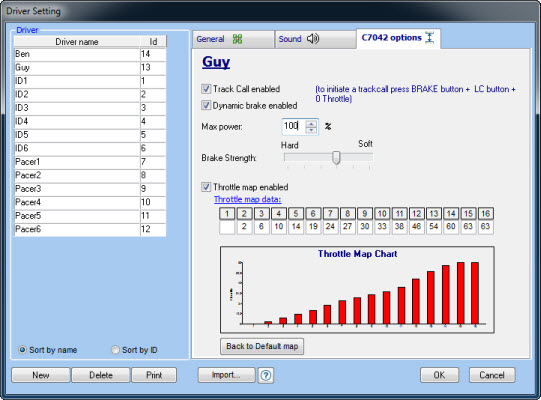
- Track call enabled:
Here you specify whether the driver can initiate a track call. Depending on the track call method, the driver must press the BRAKE button + the LC button with zero throttle (or just the LC button + the BRAKE button). - Dynamic brake enabled:
Here you specify whether the driver uses the dynamic brake. When the dynamic brake is enabled, braking is applied automatically when the throttle is fully released. - Max power:
This limits the top speed of the driver’s car; for kids, for example, you can set it to 75%. - Brake strength:
Since version 5.14, you can specify the brake strength: “Hard” means the brake signal is sent to the car immediately, while “Soft” means it is sent every sixth time. - Throttle map enabled, throttle map data:
Here you specify whether the driver uses a special throttle map. A throttle map lets the driver change the behaviour of his hand controller by modifying the power curve.
Initiate a Track call:
Depending on the track call method, press and hold the hand controller’s BRAKE button + LC button with zero throttle (or just BRAKE + LC). To end the track call, press the START button on the powerbase, or press LC + BRAKE with zero throttle again.
Programming cars, two possibilities:
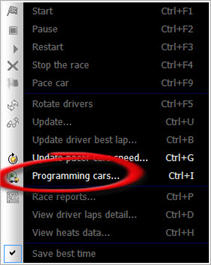
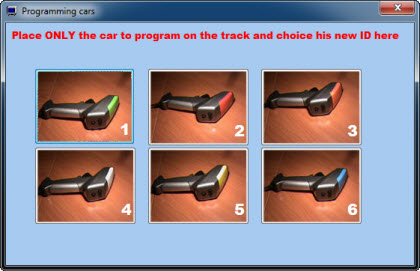
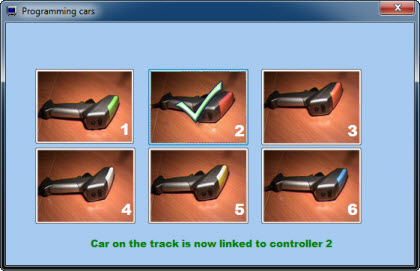
- From Pc Lap Counter: in the race control menu, select “Programming cars”, then place only the cars to be programmed on the track and choose their new ID (requires a powerbase with firmware 1.09):
- From the powerbase:
1- Place the car on the track.
2- Press and hold the ENTER button of the powerbase until the green LED flashes.
3- Press the BRAKE button of the hand controller (the red and green LEDs flash).
4- Press the START button of the powerbase to leave the car ID setting procedure; depending on the race status, the power OFF/ON LED lights up (this step is for Pc Lap Counter only).
Repeat steps 1 to 3 for each car (this is the standard way to set the car ID without the LCD display).
Requirement:
Pc Lap Counter for the C7042 powerbase has been tested on a 3 GHz P4 computer with 1 GB of RAM running Windows 7.