Webcam Track Call
Using a webcam for track call:
You can send commands to Pc Lap Counter using a webcam and a special program that can detect movement in one or more areas.
I tried Web Zone Trigger. It is perfect for this, because it can run a program when movement is detected in a specified area (you can specify more than one area).
I added to Pc Lap Counter a simple program called plc_remote.exe that Web Zone Trigger can use to send commands to Pc Lap Counter (the program is in the directory c:\Pc Lap Counter).
Here is a description of the commands that can be sent to Pc Lap Counter:
| Command | Description |
|---|---|
| START | Start the race |
| GO | Start the race |
| RESTART | Restart the race and switch the power on |
| CONTINUE | Restart the race and switch the power on |
| PAUSE | Pause the race and switch the power off |
| STOP | Pause the race and switch the power off |
| SPR | Start, pause or restart the race, depending on the race state |
| POWEROFF | Switch the power off on all lanes |
| POWERON | Switch the power on on all lanes |
Here is a short guide on how to set up Zone Trigger for track call:
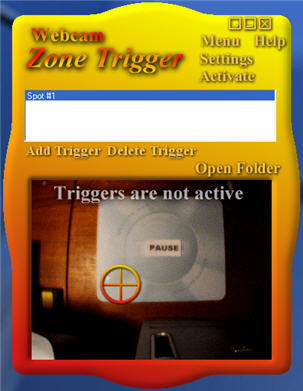
Set up the detection zone:
Action to take when the zone is triggered:
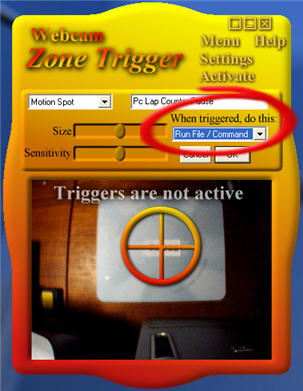
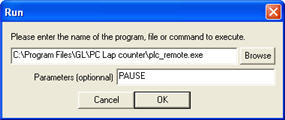
Here the program plc_remote is run with the command “PAUSE”.
For perfect detection, you need to set a few options in the Zone Trigger program:
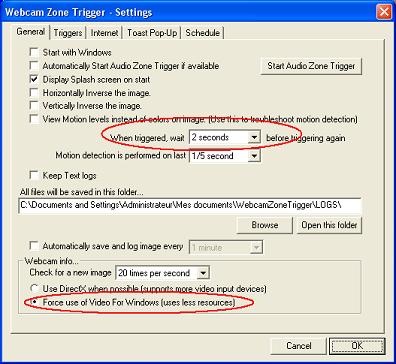
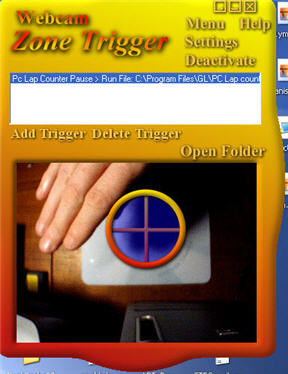
Result: when there is a change, the cursor turns blue and the “plc_remote.exe” program is run,
so Pc Lap Counter receives the command “PAUSE” and pauses the race.