
Slot.it oXigen
Pc Lap Counter works with Slot.it oXigen:
Pc Lap Counter is compatible with the Slot.it oXigen system, and since version 5.48c it is also compatible with oXigen V4.
To connect your Slot.it oXigen system to your computer, you need the oXigen dongle and you must install the Slot.it RMS “O2 Chrono” (together with the dongle driver supplied with “O2 Chrono”; more information in the O2 Chrono manual).
At the moment, the oXigen part of Pc Lap Counter is still a beta version and has been tested with a maximum of 18 cars and the following firmware: blue dongle 4.10, SCP3 controller 4.10, car chip 4.10.


What Pc Lap Counter can do with the Slot.it oXigen:
- Detect 20 cars (so far only tested with 18 cars).
- Detect pit stops (pit-in and pit-out events via magnets glued under the track in the pit lane).
- Control the track power when starting, pausing, resuming or stopping a race.
- Specify driver preferences such as max power and brake strength.
- Use the digital fuel management, based on the throttle level.
- Reduce the cars’ performance according to the fuel tank level.
- Automatically reduce the car’s max speed when entering the pit lane.
- Start/stop pace car mode (yellow flag).
- Automatically reduce the cars’ max speed during a pace car/yellow flag.
- Detect a real false start by checking the throttle level and give a stop & go penalty to the offending driver.
- Manage the “pacer driver” / “ghost car” (you can enable/disable the ghost car feature by editing the O2 ini file).
- When a driver runs out of fuel, automatically reduce his max speed to force him to refuel.
- When a driver finishes his race, automatically reduce his max speed to avoid accidents on the finish line.
- Manual and automatic track calls.
- Pit lane: you can choose to count the lap at pit lane entry, at pit lane exit, or not to count the lap.
- Automatic or manual refuelling via the BRAKE button, and the same for stop & go (since version 5.41).
- Send the track’s minimum lap time to the dongle, so that the dongle can reject short laps generated by the O2 system.
How to configure Pc Lap Counter for the Slot.it oXigen:
- In the options window, select the detector “Slot.it oXigen” (or “Slot.it oXigen V4” for the blue dongle v4) and click the “Setup...” button.
- The Slot.it oXigen interface of Pc Lap Counter automatically detects the COM port to use, but you can change it if necessary.
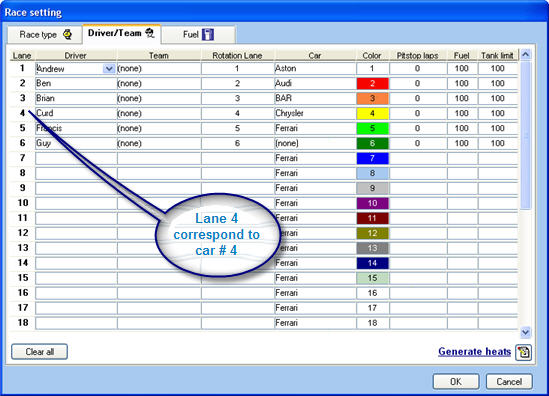
- Then you only need to assign drivers to the right lanes when you set up a race (lane 1 corresponds to car 1, lane 2 to car 2, etc.).
- Note: at least one controller must be powered on, otherwise Pc Lap Counter will not be able to connect to the dongle.


Advanced options for the Slot.it oXigen:

- Track call will:
Since controller firmware 2.14 and Pc Lap Counter 5.27, a driver can request a “track call” by pressing the “hand brake” button of his controller for 1 second (only for drivers who have “Track call enabled” in the driver settings window).
When a driver requests a “track call”, you can specify whether all cars stop or whether the pace car / yellow flag starts and slows down the cars. You can also give a stop & go penalty to the driver who requested the track call.
During the track call, refuelling of all cars can be stopped or not.
In some situations a driver cannot request a track call: when the car is in the pit lane, when the track power is off, and during the race start countdown.
You can also set up Pc Lap Counter to generate a track call automatically when a car leaves the track.
Here is a video showing the manual and automatic track call feature on a Slot.it oXigen track:
- Impact of fuel on max power:
A car with 100 L of fuel does not perform like a car with 20 L, so here you specify the percentage impact of fuel on the car’s performance.
For example, with a fuel impact of 20%, a car with 100 L has 80% of its max performance and a car with 40 L has 92%.
The fuel impact option has no influence on “pacer” drivers, as there is no fuel management for them.
If you do not want fuel to affect the cars’ performance, set the fuel impact option to 0%. - Out-of-fuel max speed:
When a driver runs out of fuel, you can reduce his car’s max speed to force him to refuel. - Pace car / yellow flag max speed: see the pace car explanation here
- Pit lane max speed:
When a driver enters the pit lane, Pc Lap Counter automatically reduces his car’s speed to this value. - Driver race-end max speed:
When a driver finishes his race, Pc Lap Counter automatically reduces his car’s speed to this value; a value of zero stops his car.
- For each driver, you can specify the maximum power and other preferences:

- Track call enabled:
Here you specify whether the driver can initiate a track call. - Max power:
This limits the top speed of the driver’s car; for kids, for example, you can set it to 75%. - Brake strength:
Here you specify the brake strength: “slow” brakes the car gently and “hard” brakes the car sharply.
Automatic track call:

Since controller firmware 2.14 and Pc Lap Counter 5.27: during a race, if the car of a driver with “Track call enabled” is not on the track, a track call is generated automatically for that driver. When the car comes back and the driver presses the “hand brake” button of his controller for 1 second, the track call is cancelled.
Lap Counting in pitlane:

Since controller firmware 2.17 and Pc Lap Counter 5.30, you can select the lap counting method in the pit lane:
count the lap at the pit lane entry, at the pit lane exit, or do nothing (do not count a lap).
Send the track’s minimum lap time to the dongle:

Since dongle firmware 4.15 and Pc Lap Counter 5.48i, you can send the track’s minimum lap time to the dongle, so that the dongle can reject short laps generated by the O2 system.
To activate this feature, go to the O2 interface and tick “Update O2 Min Lap Time with PCLC Min Lap Time”. Pc Lap Counter then sends its minimum lap time to the dongle AFTER you confirm the race setting screen, and also whenever you change the minimum lap time in the track setting.
If you do not want to send the minimum lap time, untick “Update O2 Min Lap Time with PCLC Min Lap Time”; the O2 minimum lap time is then reset.
Show Controllers data:
In the oXigen interface of Pc Lap Counter, tick “Show Cars/Controllers data” to display all the information about the controllers and cars, such as controller version, car version, throttle level, low battery level, etc.
This window is always displayed on top of all other open windows, so you can monitor the controller and car data during the race.

A green line means that the car is on the track; an orange line means that the car is not on the track.